Orum 101 Quickstart Guide for Sales Reps
This guide is designed to equip you with the essential best practices to set up your systemUpdated 7 days ago
If you're a sales rep, this guide is designed to equip you with the essential best practices to set up your system, connect with prospects, and start generating pipeline.
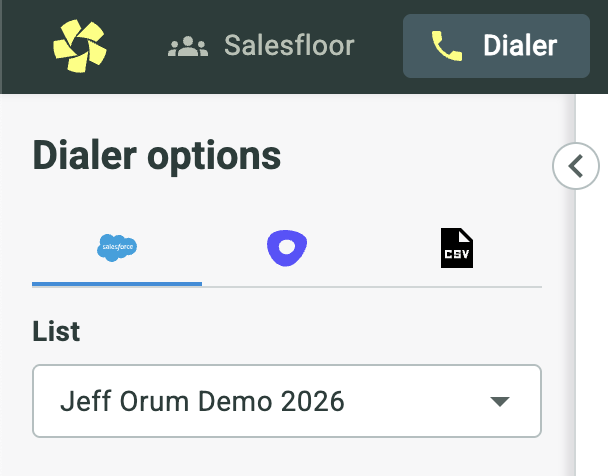
When you connect Orum to your CRM or Sales Engagement Platform (SEP), it's important to understand exactly which prospects and tasks will appear in your dialer. Think of Orum as taking a current snapshot of what it sees in your underlying system at that exact moment.
Task-Based Platforms (Outreach, HubSpot, Salesloft, Apollo, Gong Engage): If you are pulling in Sequences, Cadences, Flows, or One-Off Tasks from these platforms, they will only appear in your Orum dialer if they meet three criteria:
They must be designated as a Call Task.
They must be currently due or overdue.
They must be assigned to you.
List-Based Platforms (Salesforce Reports & HubSpot Segments): If you are dialing from a Report or a Segment, Orum will simply display the contacts that currently reside within those specific Reports or Lists. See: Supported SFDC Report Types
Refreshing Your Snapshot: Because Orum operates on "snapshot" logic, your dialing list won't automatically update the second a change is made in your CRM or SEP. To pull in new Tasks and get an updated snapshot of Contacts, you will need to manually refresh your list within Orum in the upper-right corner.
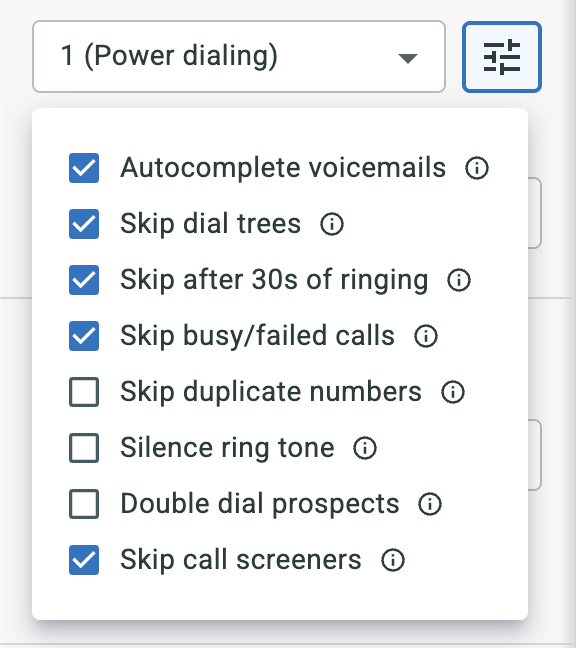
To maximize your efficiency while in "Power Dialing" mode, Orum provides several checkboxes in your Dialing Options. These settings allow the system to automatically handle tedious call scenarios so you can focus exclusively on live conversations.
Autocomplete voicemails: Check this to automatically skip (or drop a pre-recorded voicemail) when Orum detects an answering machine, then log a disposition (e.g., "Left Voicemail"), and seamlessly move to the next prospect on your list.
Skip dial trees: Dial trees (or auto-attendants/phone menus) can slow you down. Check this to automatically log the call as "No Answer" and move on. Pro Tip: You can also program dial tree steps to save a successful path for the next round of calling.
Skip after 30s of ringing: Check "Skip After 30 Secs of Ringing" to automatically log a "no answer" and hang up if a prospect doesn't pick up within half a minute.
Skip busy/failed calls: Check this to instantly log out-of-service, incorrect, or busy numbers as "failed" and move on.
Silence ring tone: Check this option to mute the ringing audio while the dialer works through your list.
Skip call screeners: Check this to automatically detect iOS/Android automated call screening prompts and skip to the next contact.
Note: If your organization has disabled parallel dialing, you will find these skip options located below the Voicemail settings section instead of the standard Dialing Options)
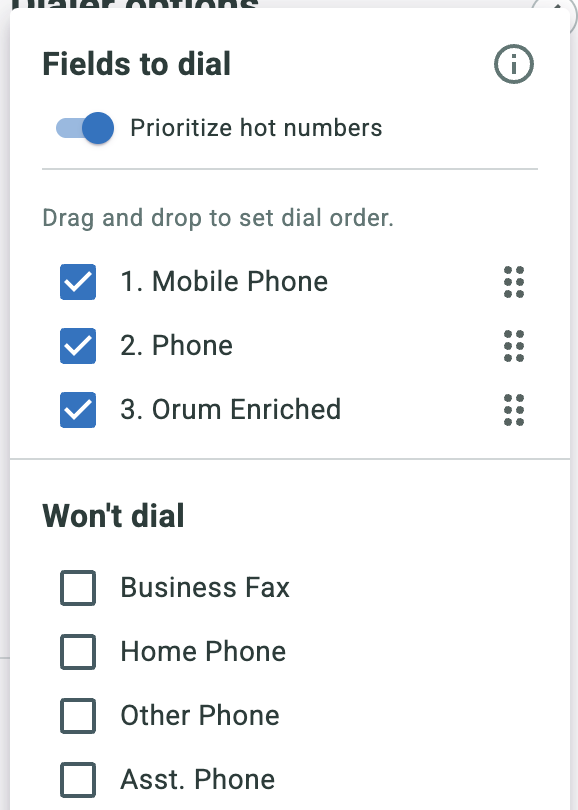
To connect with your prospects efficiently, you need to ensure Orum is dialing the right numbers in the right order. The Phone fields setting controls exactly which numbers (Mobile, Direct Line, HQ, etc.) are dialed from your CRM, Sales Engagement Platform (SEP), or uploaded list.
Prioritize Your Best Data: You can arrange the order of the phone fields before your dialing session It is a best practice to ask your organization which fields contain the most reliable data and arrange those at the top of your list . Typically, prioritizing Mobile and Direct phones yields the best connect rates by avoiding gatekeepers and dial trees. If you must dial an HQ number, make sure it is placed at the bottom of your priority list.
Integration-Specific Quirks: Depending on how you connect to Orum, there are a few platform-specific rules to keep in mind:
Salesforce: Orum recognizes all phone fields on the object you are calling against . Note that the green/red Number Status feature is unique to Orum and does not push back to Salesforce.
Outreach: Orum recognizes all native and custom phone fields. Unlike most other integrations, when you mark a Number Status as Red or Green in Orum, it will post that status back to Outreach.
Salesloft: Make sure your prospect's extensions exist specifically in the extension field so Orum can dial them automatically. Custom phone fields will only be recognized if the word "phone" is in the field name
HubSpot & Apollo: Orum recognizes all native and custom fields, but custom fields must have the word "phone" in the API name (HubSpot) or field name (Apollo) to be detected
CSV Uploads: If you are importing lists via Microsoft or Google CSV, the word "Phone" must be in the column header for Orum to recognize the data . Make sure every uploaded list has the correct fields, as Orum will not cross-reference other lists for phone data . If a number has a problem, it won't be dialed and will be sent to the 'Uncallable Numbers' section
Controlling what your prospect sees when their phone rings is essential for building trust and maximizing your connect rates. Orum provides compliant, data-backed features to optimize your caller ID.
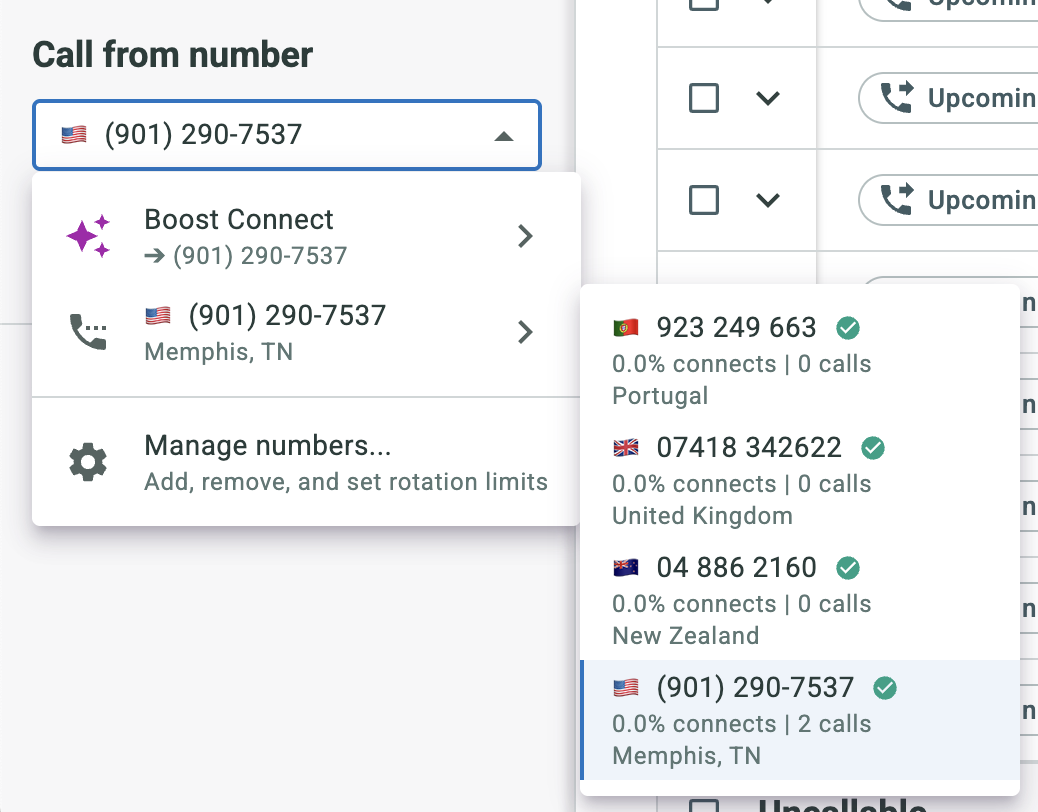
Call from number: This is the specific phone number your prospect will see on their Caller ID when you dial them. If you have multiple Call From numbers provisioned, Orum displays the historical connect rates associated with each. It is highly recommended to select numbers with meaningful data and high connect rates to improve your chances of an answer.
Boost Connect: When you activate "Boost Connect" on an outbound call, Orum leverages 14 different data sources and millions of platform calls to automatically display a unique Call From Number with the highest propensity to connect. NOTE: Orum does not engage in number spoofing. Every number provided is a Grade A, real business line procured from a Tier-1 telephony distributor and is fully compliant with STIR/SHAKEN caller ID laws. All numbers are traceable back to your organization, and Orum utilizes automated reputation monitoring software to alert you of any potential SPAM risks.
Fallback Numbers: This is the number Orum will default to if Boost Connect doesn't have enough data to make a confident decision on which number to use. Search by Area Code, then add to your library.
Number Limits & Sourcing: Your allowance for concurrent Fallback Numbers depends on your Orum package. If you reach your limit, you will need to wait until the next month and delete an old number before provisioning a new one.
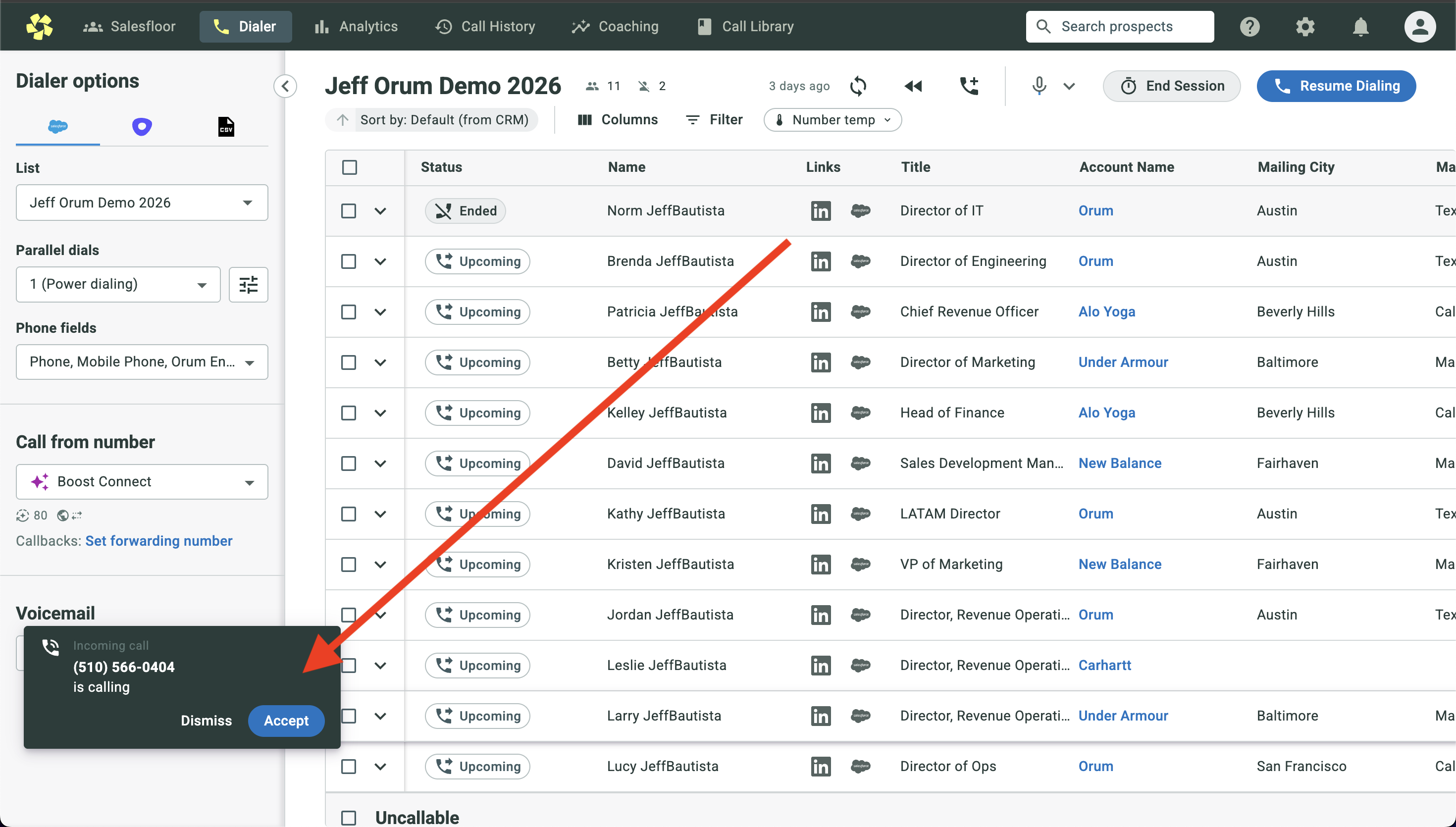
Sometimes prospects miss your call and call you back. You're 4x more likely to book a meeting on thse callbacks. To ensure you capitalize on these opportunities, you can handle these seamlessly without leaving the platform.
Browser Notifications: You'll receive inbound callbacks directly in your browser as long as you are actively "dialed in" to an Orum session.
Desktop Notifications: To receive call notifications when you're away from the Orum tab, in Personal Settings (upper-right corner), Enable Desktop Notifications.
Call Forwarding: If you are not dialed into Orum, calls will route to your designated callback number (add this in the left-hand column of the dialer) and you can receive an SMS notification with the caller details.
To turn basic cold calls into strategic engagements, you need to have the right context before a prospect answers.
Customize Displayed Fields: Navigate to your Personal Settings in Orum to select the exact prospect information you want to see during a call. (If using the Orum+Salesforce integration, control this by adding columns to your report in SFDC).
Context is Key: You can display details like the prospect's role, their company, and more. Review these fields before you start your session so you can seamlessly weave this information into your pitch .
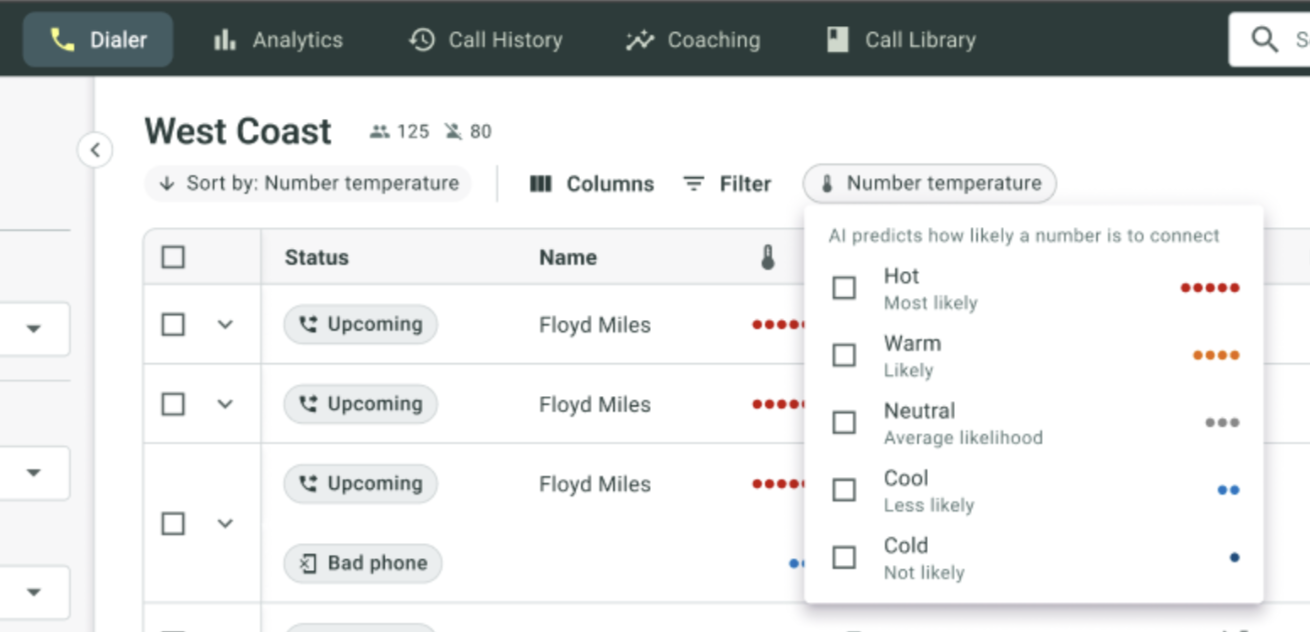
You shouldn't have to guess which phone numbers on your list are accurate or likely to pick up. Orum takes the guesswork out of dialing with Hot Numbers.
Spot the Emoji: Look for red 🔴🔴🔴🔴🔴 or orange 🟠🟠🟠🟠 dots next to a prospect's phone number. This indicates that the number is up to 5x more likely to result in a connection .
Data-Driven Success: The dots are powered by a proprietary algorithm that analyzes historical connection rates from over 100 million calls made on Orum. Users dialing Hot Numbers have experienced connect rates up to 4x higher than standard lists .
Cold calling doesn't have to be a lonely task. Orum brings back the collaborative buzz of an office environment.
The Virtual Salesfloor: You can navigate to the Salesfloor feature to work alongside your team.
Team Features: Utilize tools like Live Listen, Spotlighting, Screensharing, Chat, and Achievements to celebrate and learn from your peers while you dial.
Before you start dialing, your technical setup is crucial for avoiding dropped calls, lag, and poor audio.
Internet Connection: Hardwire your computer to your router if possible . For remote workers, aim for speeds of 50 Mbps download / 5 Mbps upload with <100ms latency for the dialer, and 100/15 Mbps if using the Salesfloor. In an office, you need 20/5 Mbps per user for the dialer and 40/15 Mbps for the Salesfloor. Note that VPNs and firewalls can negatively impact Orum's performance.
Audio Equipment: Use a wired USB headset. Bluetooth headsets rely on signal and battery life, which can cause drops. Ensure your headset is selected as the default input and output device in your computer's audio settings.
Browser Hygiene: Chrome is the preferred browser for Orum. Open a fresh browser every day, close unnecessary tabs, and remove unused extensions.
Computer Maintenance: Completely close out of superfluous applications while dialing to dedicate system resources to Orum. Restart your computer and update your browser daily (or at least weekly) to ensure optimal stability